WINK Authenticator is a free application for iPhone, iPad and Android that produces the six digit codes a website or a system asks for after your password. This manual covers everything it does, in the order you are likely to need it. If you only read one other thing, read section 6, because moving your accounts to a new phone is the part that catches people out.
It applies to the current release on iPhone and iPad running iOS 17 or later, and on Android phones and tablets running Android 8 or later. Where the two work differently, both are described, and the screenshots can be switched between them. The product page is WINK Authenticator.
Contents
1. What it does
Two step verification, which you will also see called 2FA or MFA, asks for two things rather than one: something you know, which is your password, and something you have, which is your phone. WINK Authenticator is the something you have. Once you have connected it to an account it produces a new six digit code every thirty seconds, and you type that code after your password to finish signing in.
- It works with any website, VPN or system that offers codes from an authenticator app. These are the open TOTP and HOTP standards that nearly every service supports, so nothing here is specific to us and nothing locks you in.
- It works completely offline. Producing a code needs no internet connection, no account and no sign-up.
- Your account keys stay on your device, in its own secure storage. They are never placed in iCloud, in a Google account or on a WINK server.
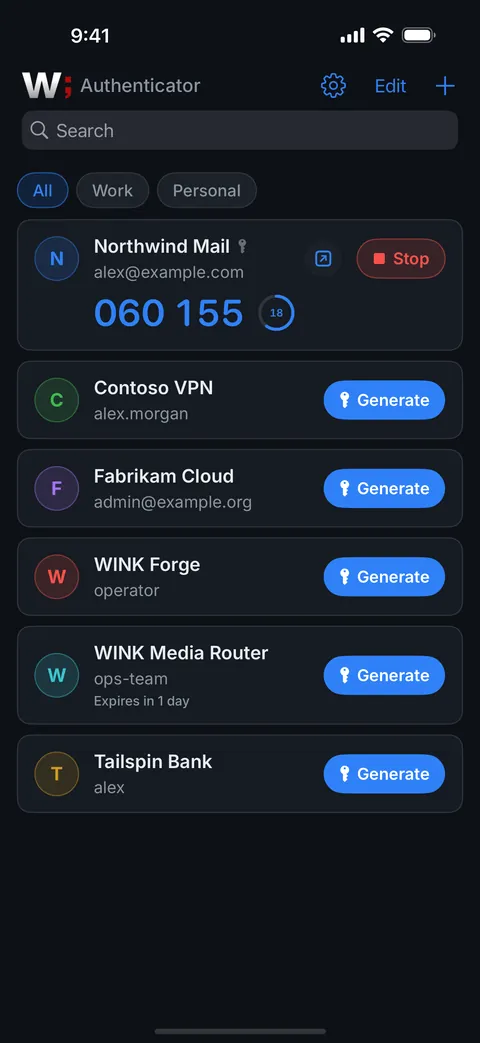
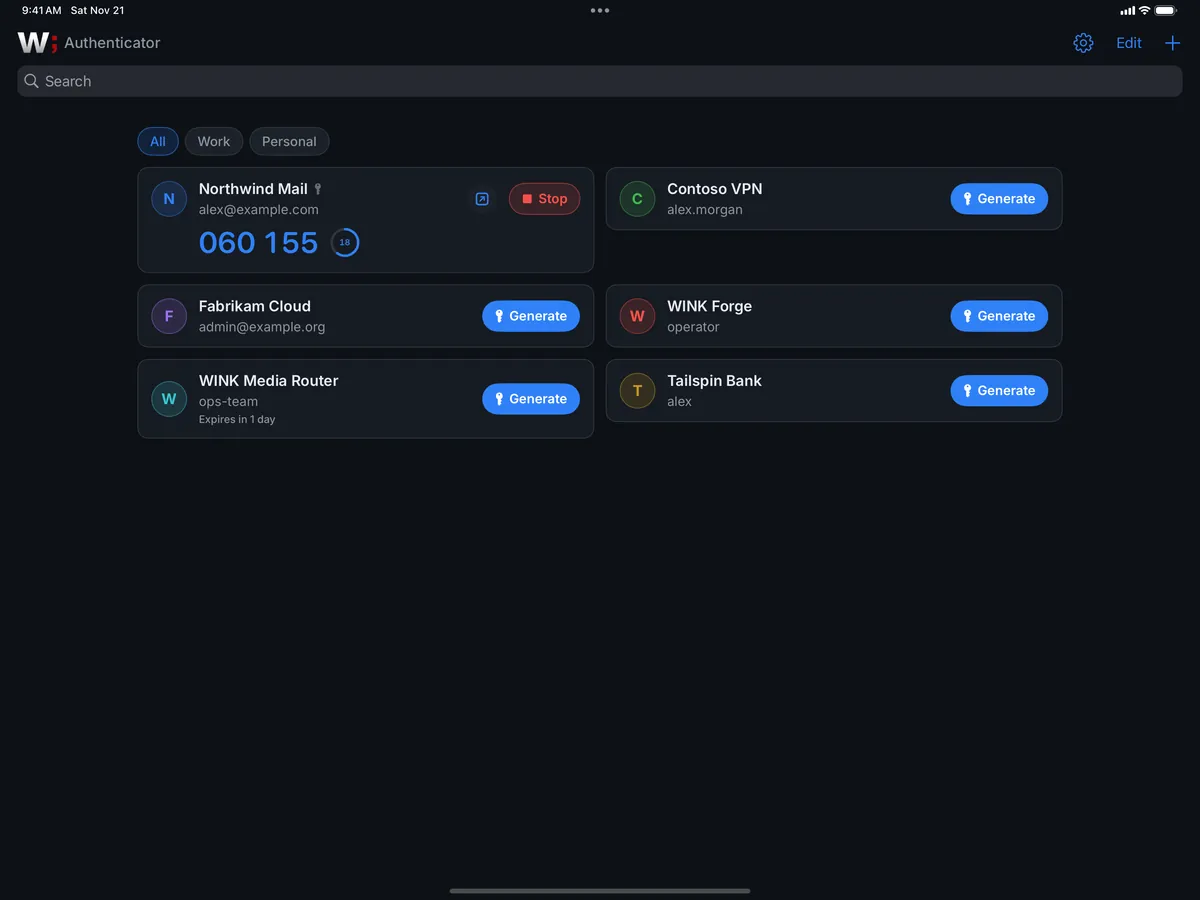
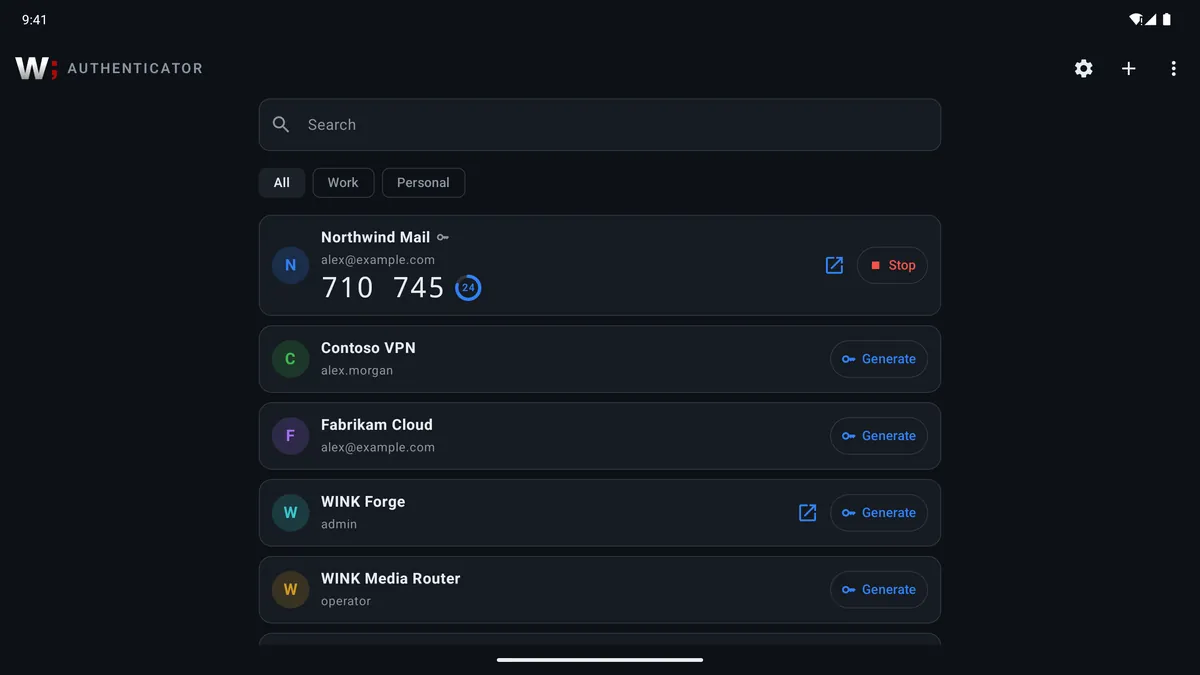
It is the same application on a tablet, laid out for the wider screen, which is worth knowing if the device that lives on the desk is an iPad or an Android tablet rather than a phone.
2. Getting started
- Install WINK Authenticator from the App Store or Google Play.
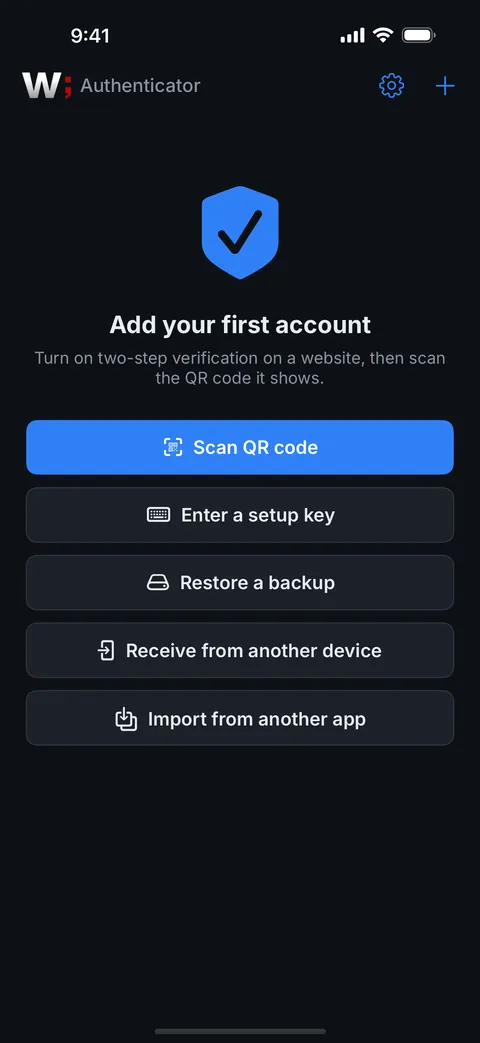
- Open it. The first screen, Add your first account, offers the ways to add one, covered in section 3. It also offers Restore a backup, Receive from another device and Import from another app, which are the routes to take if you are coming from an old phone or another authenticator.
- Once you have added your first account, the app offers to protect your codes with Face ID, Touch ID or your fingerprint. Turning that on is worth doing, and section 9 explains the options.
Before you start relying on it
Make a backup, or set up a second device, as soon as you have added your accounts. Section 7 and section 6 cover both. WINK cannot recover your accounts if you lose your phone, because we never hold a copy of them. That is the point of the design, and it is also the reason this one step matters more than anything else in this manual.
3. Adding an account
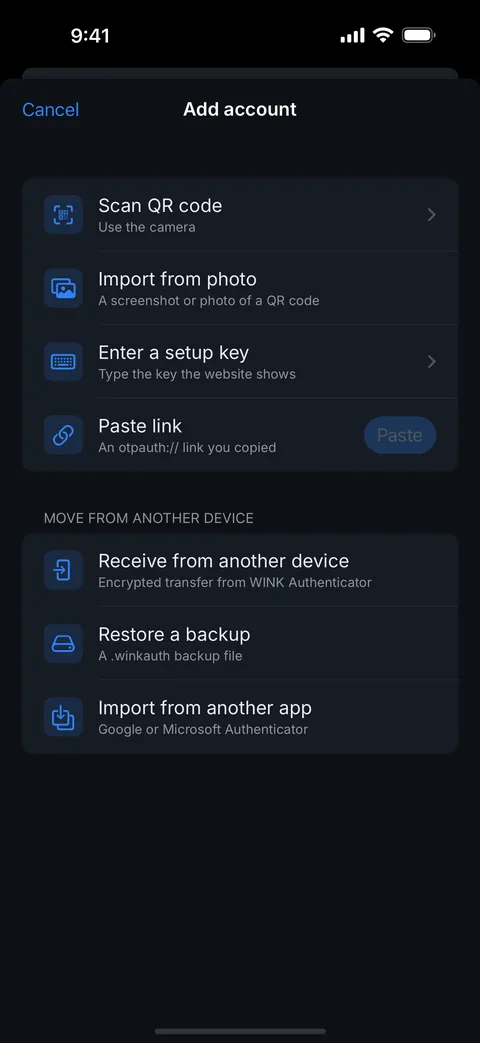
Start on the website or system you want to protect. Turn on two step verification there and choose authenticator app when it asks how. It will show you a QR code, and usually a text setup key as well. Then open WINK Authenticator, tap +, and pick whichever of the following suits.
3.1 Scan a QR code
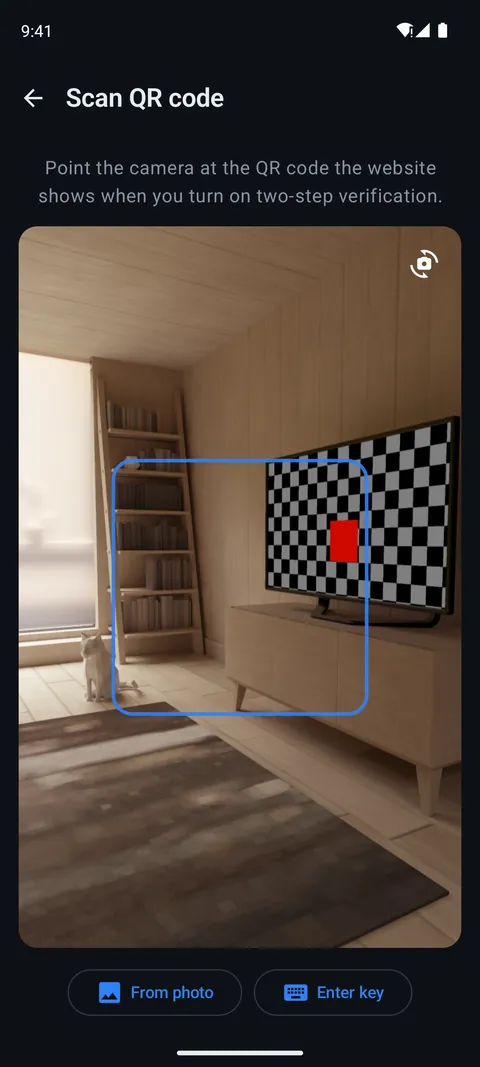
This is the usual way. Tap Scan QR code and point the camera at the code on your screen. It is recognised straight away, and the new account is added and shown to you so you can check it.
- Tap the camera view to focus.
- Use the camera switch button to change between the front and back camera. That is useful on an iPad, where the code is often on a phone you are holding up to it.
- The camera is used only to read QR codes. Nothing is recorded and nothing is sent anywhere.
3.2 Use a screenshot of a QR code
If the QR code is on the same phone, which happens when the setup page is open in the phone's own browser or the code arrived by email, choose Import from photo and pick the image. The code is read out of the picture.
3.3 Type the setup key
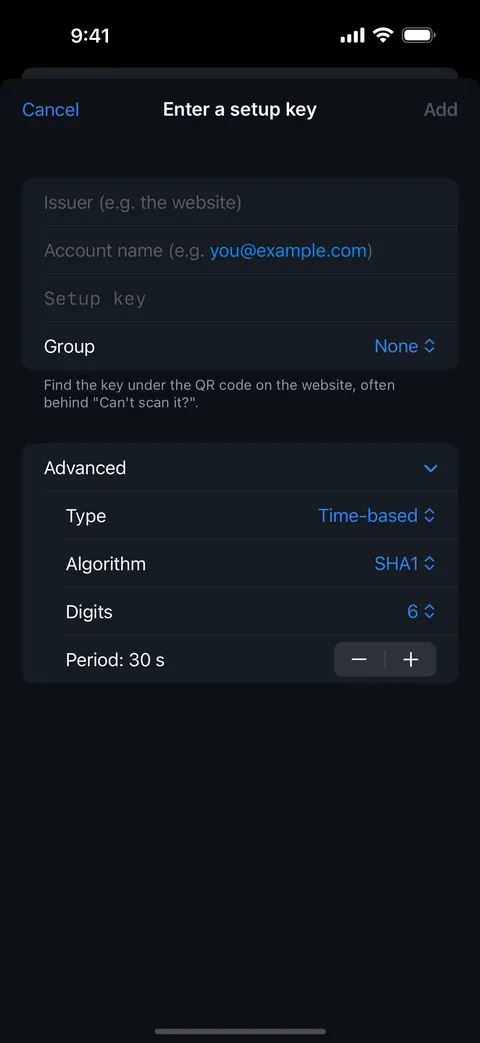
Choose Enter a setup key, then type the account name and the key the website shows. Spaces and capitals do not matter. Most sites need nothing more than that. If the site tells you it uses SHA-256, eight digit codes or sixty second intervals, open Advanced and set those to match.
3.4 Paste a link
If you have copied an otpauth:// link, choose Paste link and then Paste. On an iPhone, tapping a link like that in Safari may open Apple's Passwords app instead, because it handles the same links. Copy the link and paste it into WINK Authenticator rather than tapping it.
3.5 Check it and finish
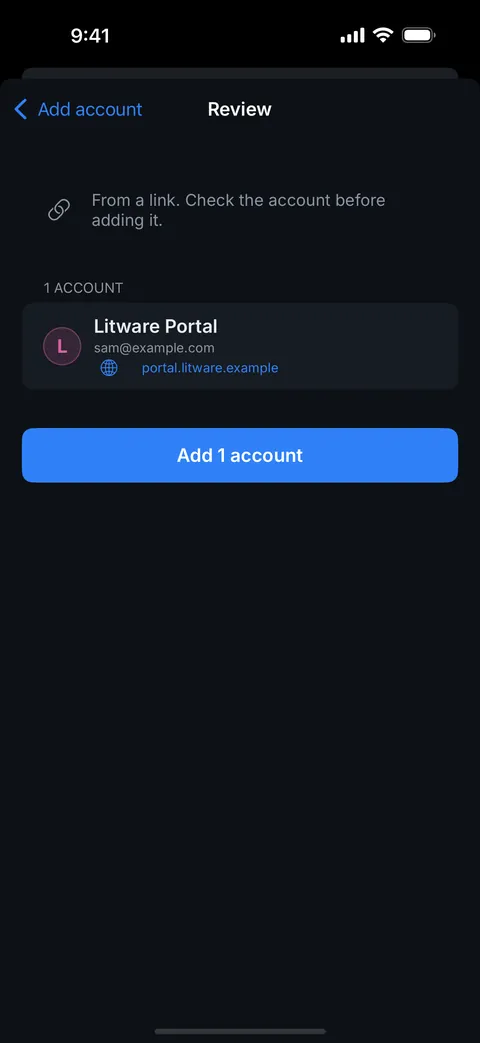
After adding, the app shows you the new account. If the setup code included a website address, that address is shown so you can confirm it is the site you expected. Most sites then ask you to type the current code once to prove the setup worked: tap Generate on the new account and type the code into the site.
3.6 Accounts for WINK systems
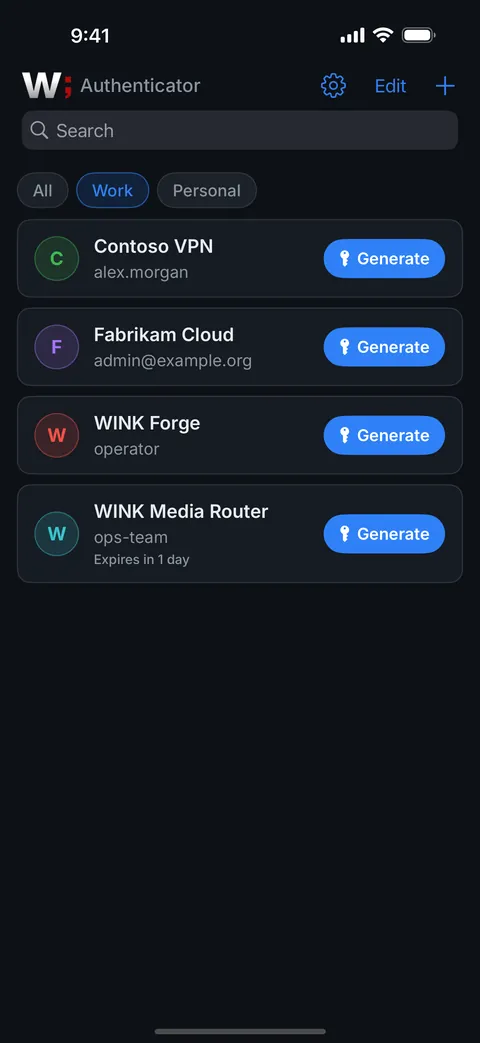
Accounts for WINK Forge, WINK Media Router, WINK Archiver and WINK Crossroad are recognised automatically and put into the Work group. Closer integration with those systems is on the way and is described in section 12; none of it is available yet.
4. Getting a code
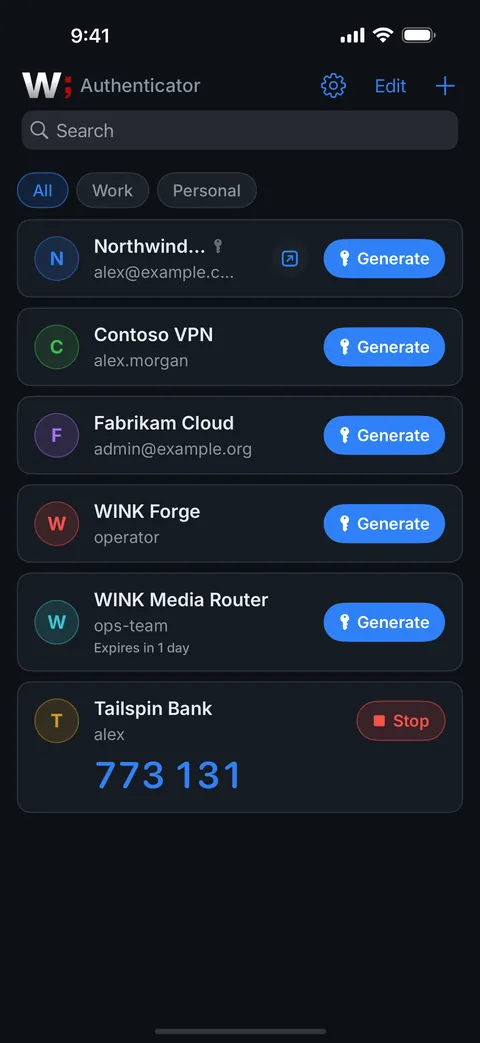
Codes stay hidden until you ask for one, so nobody standing behind you can read the lot.
- Find the account. Scroll to it, use Search, or tap Work or Personal to filter the list.
- Tap Generate. The code appears with a countdown ring and refreshes itself every thirty seconds. In the last ten seconds the next code is shown as well, so you never have to rush a half typed code.
- Tap the code to copy it, then paste it into the sign-in page. A copied code is cleared from the clipboard after about a minute.
- Tap Stop when you are done. Only one code is ever on screen: generating a code for a different account hides the first one.
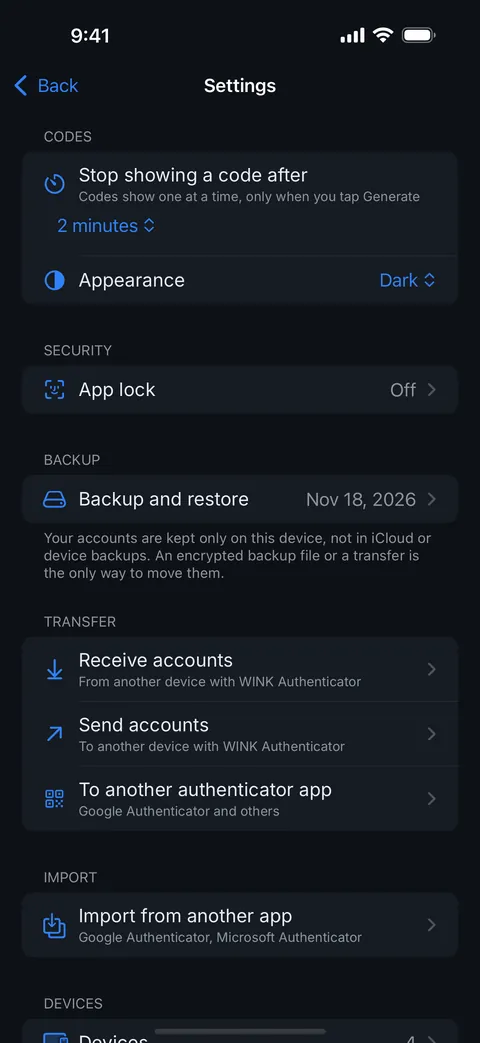
A code also stops showing when you leave or lock the app, and after a few minutes of not being used. Change how long in Settings, under Stop showing a code after on iPhone and iPad, or Stop a code after on Android. The choices are 1 minute, 2 minutes and 5 minutes, and it is two minutes to begin with.
4.1 Counter based accounts
A few systems use codes that change only when you ask for a new one, rather than every thirty seconds. These are HOTP accounts. On one of those, Generate moves to the next code and shows it, and there is no countdown ring.
5. Managing accounts
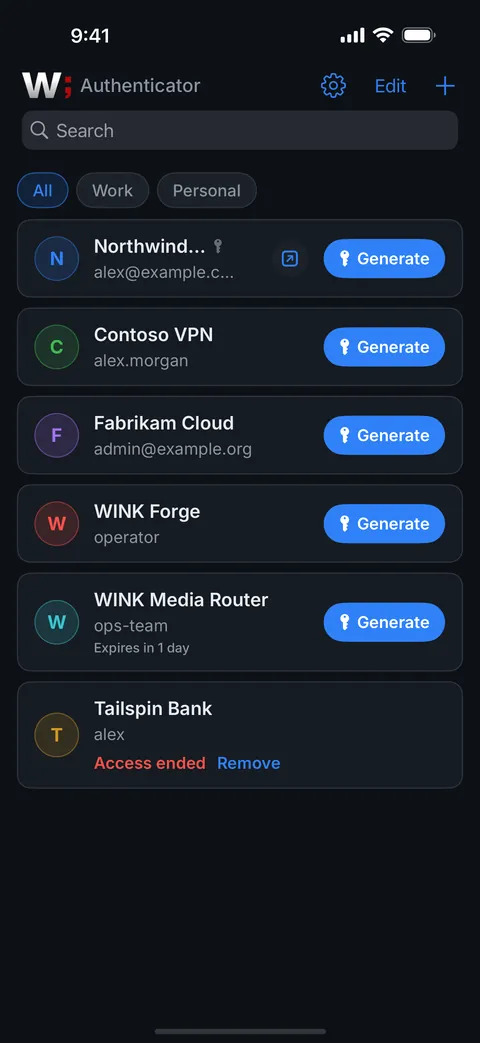
Press and hold an account to reach the rest of what it can do. On an iPhone or iPad that offers Copy code, Edit, Show QR and Delete; on Android it offers Edit, Show QR code and Delete. Edit opens the account's own settings, which is where everything below lives.
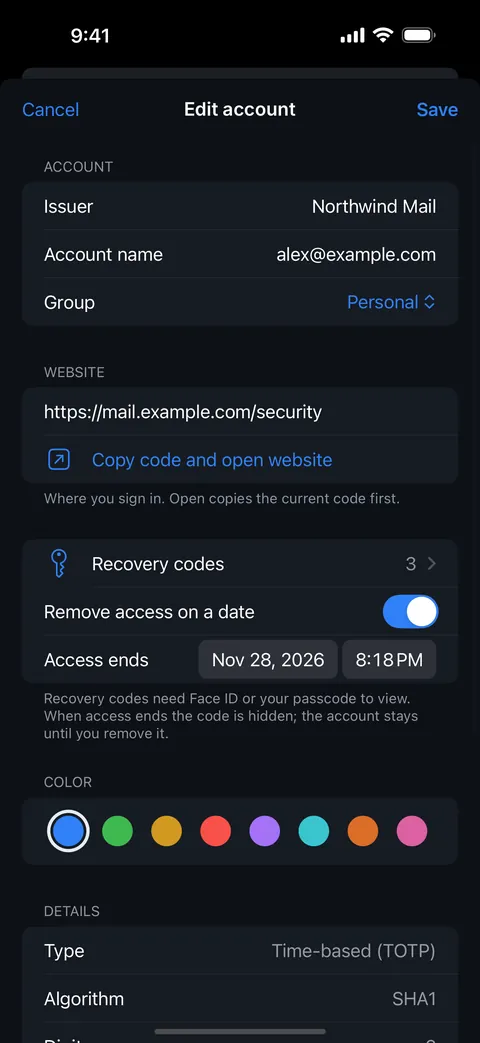
- Name and issuer. Change how the account is shown in your list. This changes nothing on the website itself.
- Group. Put the account in Work, in Personal, or in neither, then use the filter at the top of the list.
- Colour. Choose the colour of the badge beside the account, which makes a long list much faster to scan.
- Website. Add the site's address and an open button appears on the row. It copies the current code and opens the site in your browser. The first time you use it, it asks you to confirm the address.
- Remove access on a date. For a temporary or support account. The row shows how long is left, and once the date passes the code is hidden and the row offers to remove it. Nothing is deleted without you confirming it.
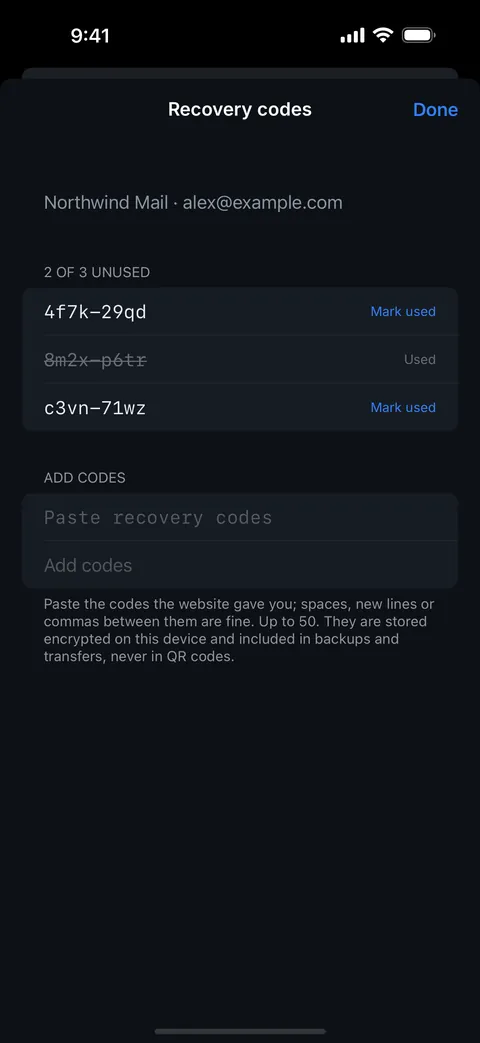
- Recovery codes. Keep the one time backup codes a website gave you alongside the account they belong to. Opening them always asks for Face ID, Touch ID, your fingerprint or your passcode. You can paste a whole set at once, mark one as used, or delete one.
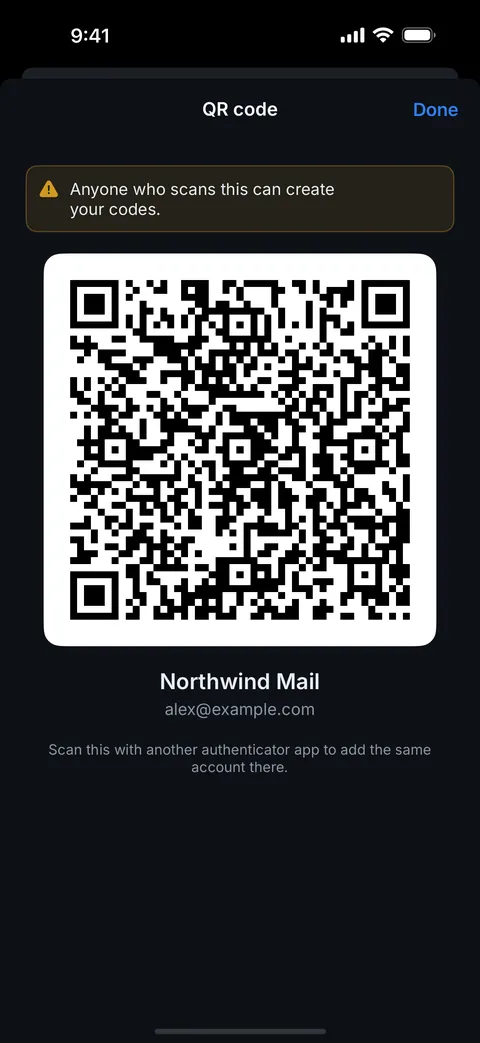
- Show QR. Displays the account as a QR code so another authenticator app can scan it. The screen says so itself: anyone who scans it can create your codes from then on, so only do this somewhere private.
- Reorder. On an iPhone or iPad, tap Edit at the top and drag. On Android, use the top menu and choose Edit order.
- Delete. Removes the account from this device only.
Before you delete an account
Turn two step verification off on the website first, or make certain you have another way to sign in. Deleting the account here does not tell the website anything, so if this was your only way of producing its codes you will be locked out of it.
6. Moving to a new phone
Accounts move straight from one device to the other, encrypted, with no internet connection and nothing in a cloud. It works between any mix of iPhone, iPad and Android.
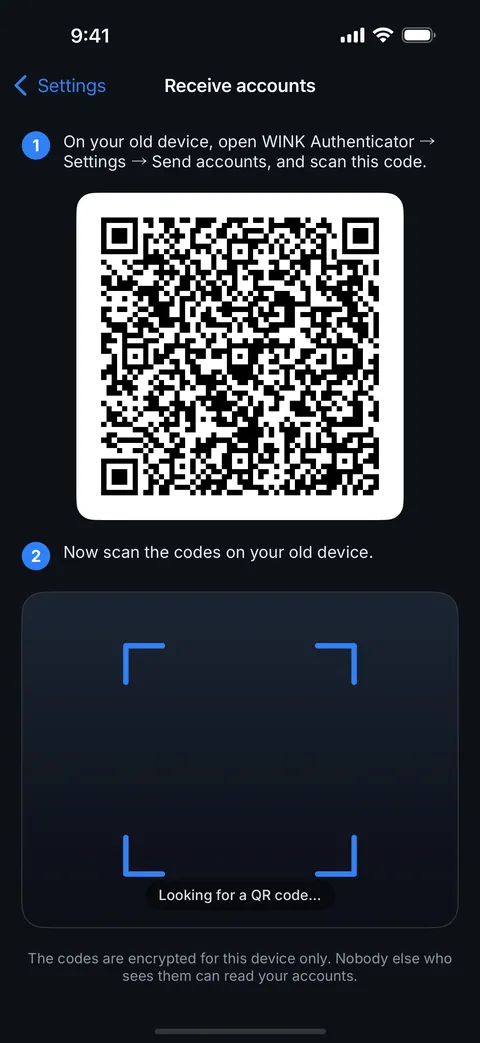
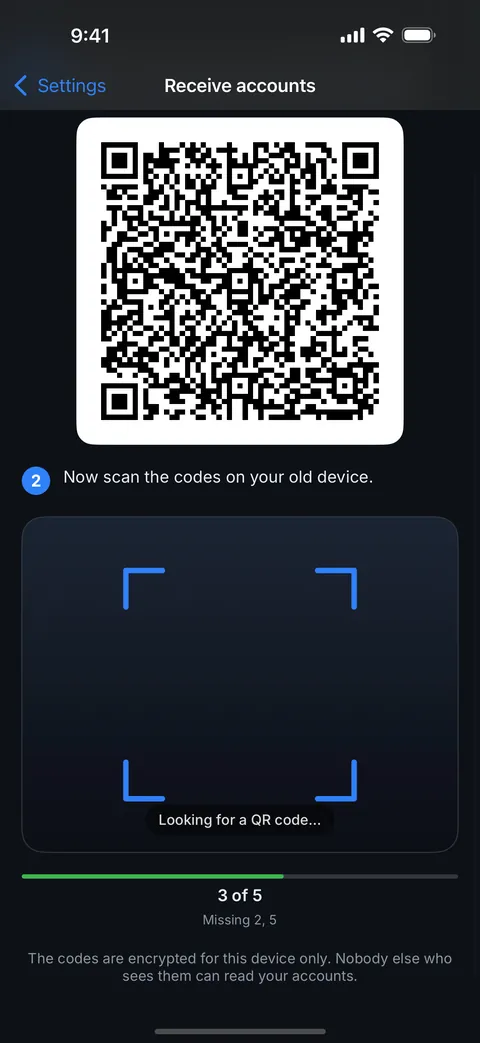
- On the new device, go to Settings, then Transfer, then Receive accounts. It shows a QR code.
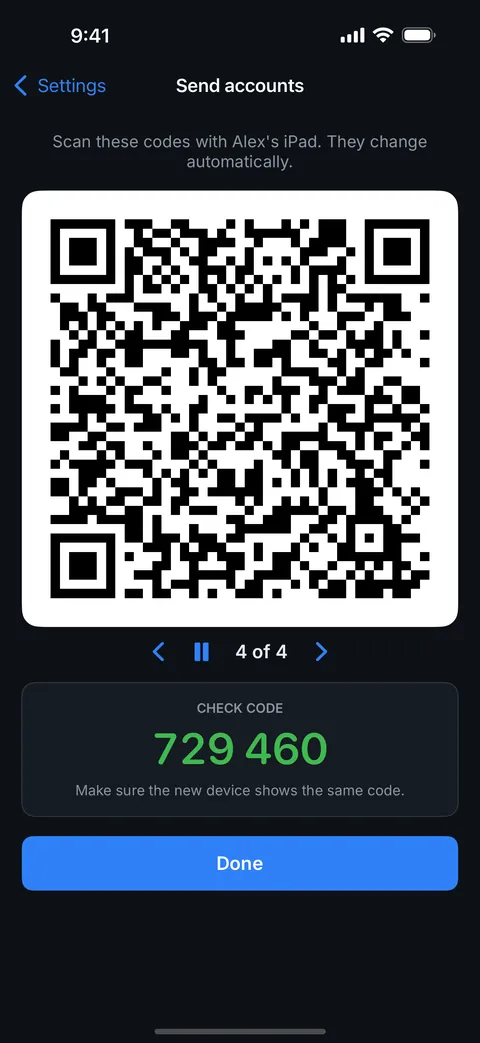
- On the old device, go to Settings, then Transfer, then Send accounts. Scan the new device's QR code, choose which accounts to send, which starts with all of them selected, then hold the old device's screen up to the new device's camera. The old device shows a short series of codes that change about twice a second.
- The new device collects them in any order and shows you how far it has got, along with which ones it is still waiting for.
- Check that both screens show the same six digit check number, then add the accounts on the new device. Anything already there is skipped rather than duplicated.
- The old device then asks whether to remove the accounts from itself. Choose Keep if you want both devices to carry on working.
If it is struggling to read the screen
Turn the sending screen's brightness up and hold both devices steady. On an iPad, use the front camera and hold the phone up to it. The sender keeps cycling through the codes until the receiver has caught all of them, so there is no need to start again. What is being shown is encrypted for the receiving device alone, so somebody filming the screen cannot read it.
7. Backup and restore
A backup is a single password protected file, encrypted with AES-256, that you can keep in Files, on a drive, in your own storage or anywhere else you keep important things. It holds your accounts, their groups, their websites and their recovery codes.
Creating a backup
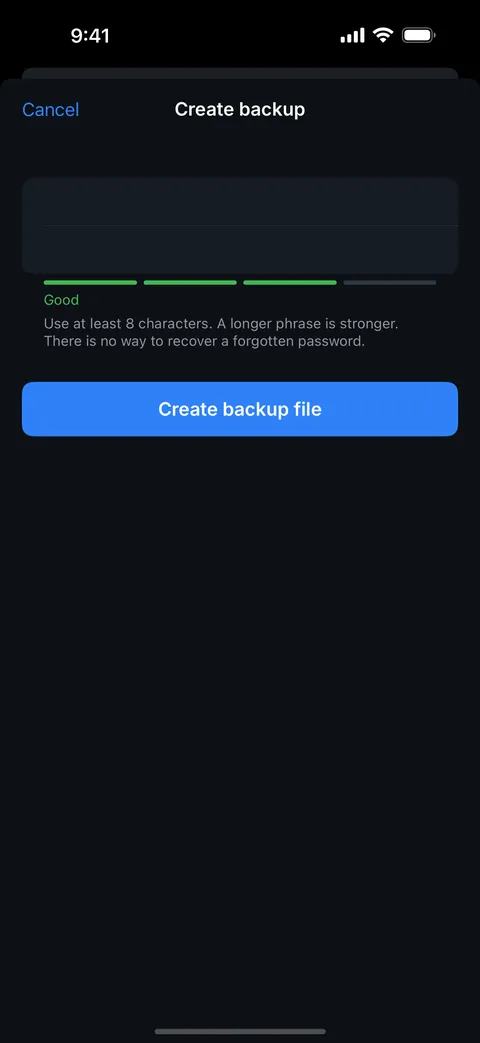
On an iPhone or iPad, go to Settings, then Backup and restore, then Create backup. Type a Backup password twice and tap Create backup file. On Android, go to Settings, then Create backup, type the password twice, then Save to Files or Share.
Choose a password you will remember, because WINK cannot reset it, and keep the .winkauth file somewhere other than this phone. A backup kept only on the phone it came from protects you against nothing. The app reminds you when your last backup is more than thirty days old and your accounts have changed since.
Restoring from a backup
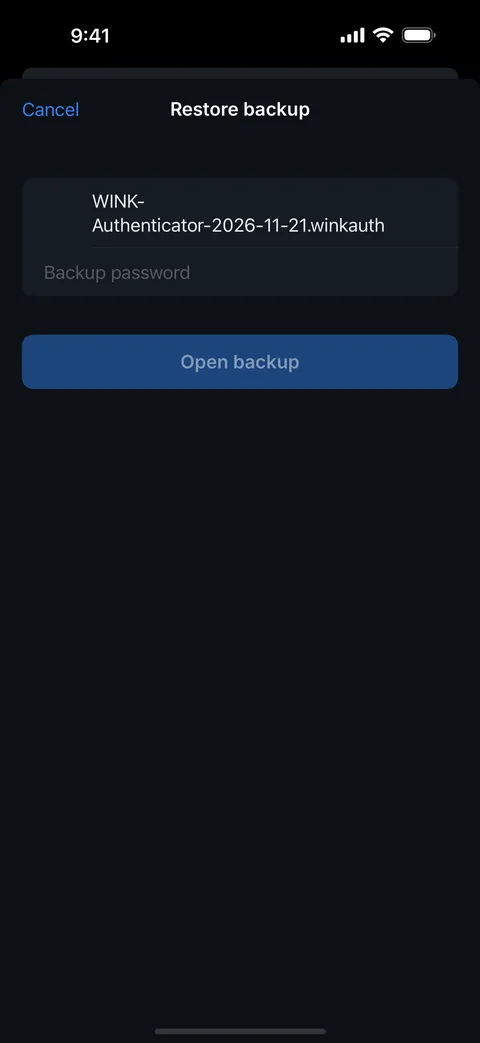
Open the .winkauth file directly, or go in through Settings. On an iPhone or iPad that is Backup and restore, then Restore from a backup, then Choose backup file, then the Backup password and Open backup. On Android it is Restore backup, then pick the file, type the password and tap Restore.
Then add the accounts. Anything already on the device is skipped. A message about a wrong password or a damaged file nearly always means exactly that: the password does not match.
Why your accounts are not in iCloud or an Android backup
They are deliberately left out, because the keys never leave your device's secure storage. That is what stops anyone who gets into your cloud account from walking away with your second factor as well. The consequence is that a WINK backup file, or a transfer to another device, is the only way to move them, which is why this section matters.
8. Importing from another authenticator app
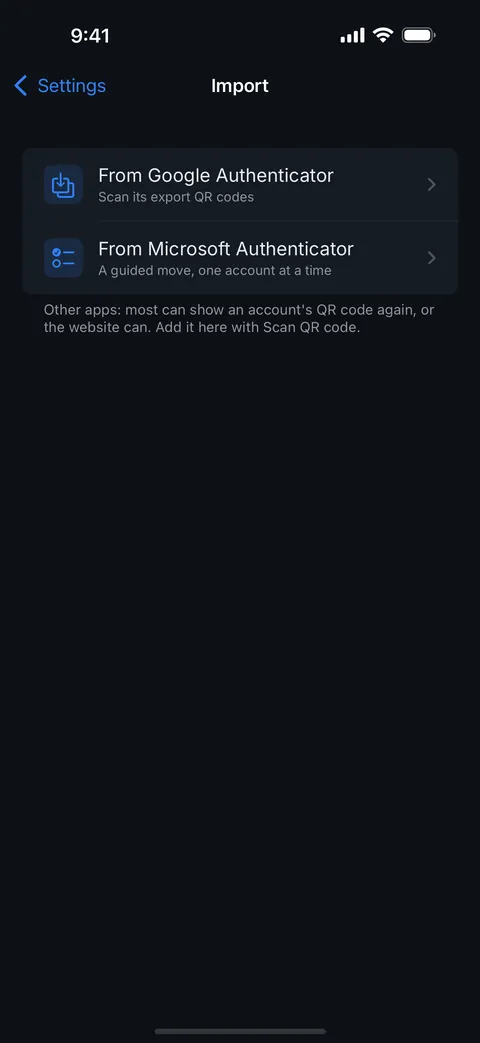
Go to Settings, then Import from another app. It is also offered on the first screen before you have added anything, and in the + menu.
From Google Authenticator
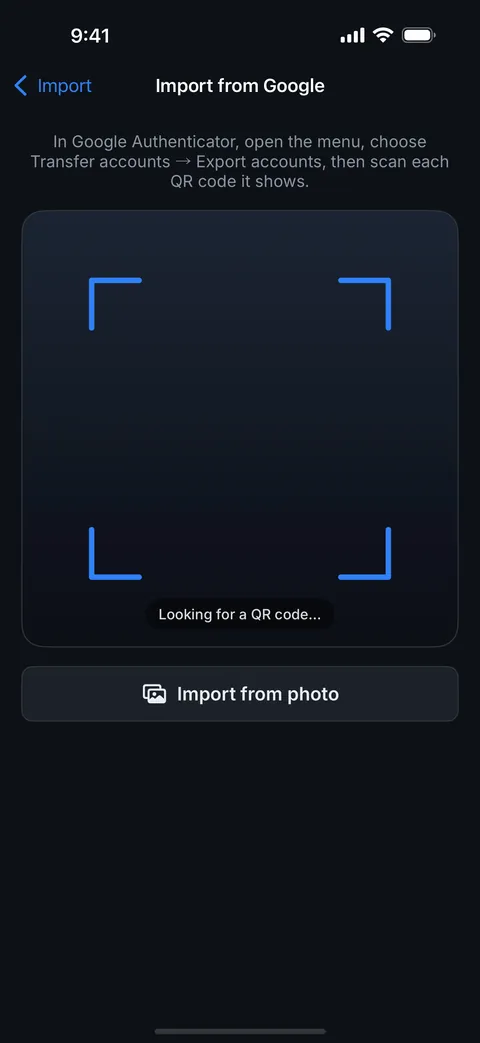
In Google Authenticator, choose Transfer accounts, then Export accounts. It shows one or more QR codes. In WINK Authenticator, choose From Google Authenticator and scan each one. It tells you which batch you are on as you go. Review the list that comes out and add it.
From Microsoft Authenticator
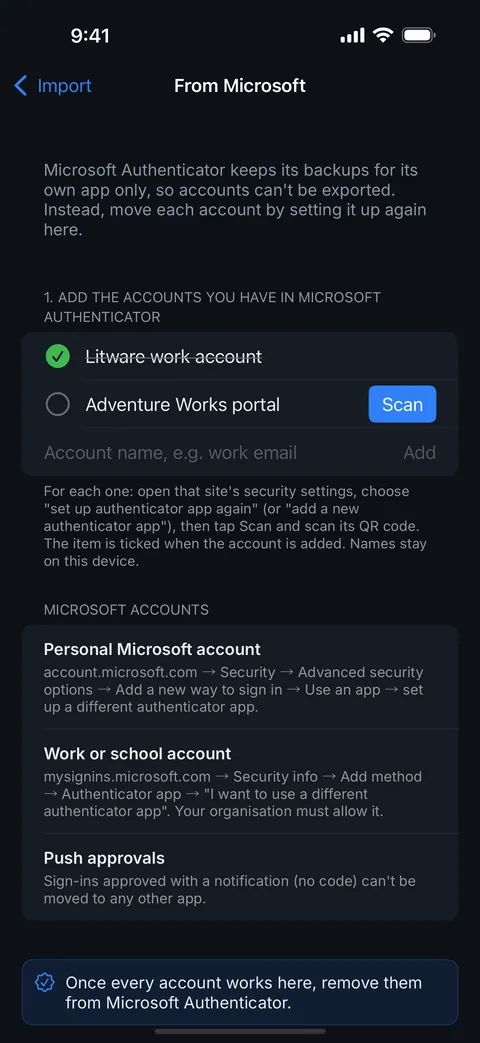
Microsoft Authenticator has no export, so its accounts have to be moved one at a time by setting each one up again. The app walks you through it and keeps your place.
- List the accounts you hold in Microsoft Authenticator. Only the names are saved, and only on this device.
- For each one, open that website's security settings, choose to set up an authenticator app again or add another one, and tap the scan button next to the item in the checklist. It is ticked off once it has been added.
- For a Microsoft personal account, at
account.microsoft.com: Security, then Advanced security options, then add a new way to sign in, then use an app, then set up a different authenticator app. - For a Microsoft work or school account, at
mysignins.microsoft.com: Security info, then add method, then authenticator app, then choose to use a different authenticator app. Your organisation has to permit this. - Sign-ins that use a push notification asking you to approve cannot be moved to any other app at all. That is a property of how they work, not a limitation here.
- Once every account produces working codes in WINK Authenticator, remove them from the old app.
From anything else
Any app that can show an account as a QR code, or that can export in the Google Authenticator format, can be brought across by scanning.
Moving back out again
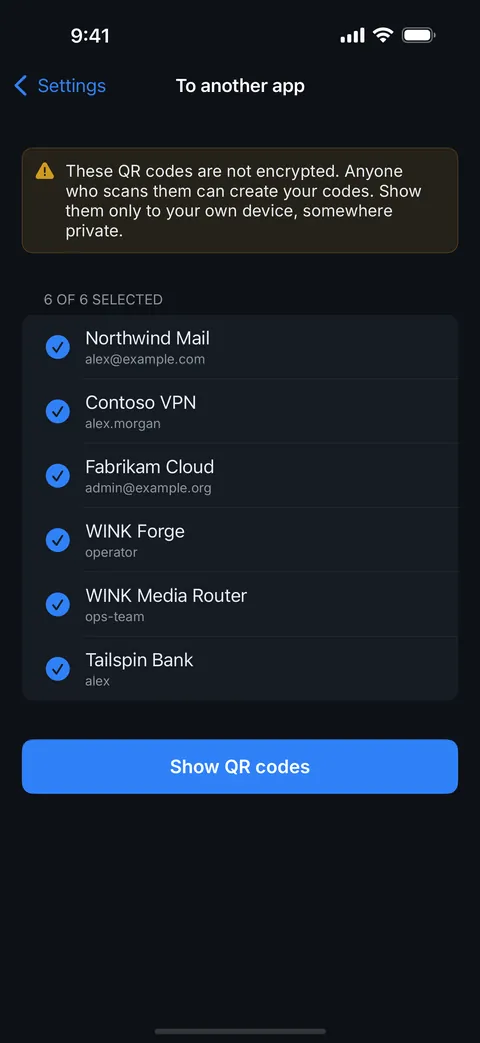
Settings, then To another authenticator app, and on an iPhone or iPad then Show QR codes, produces codes most authenticator apps can scan. These are not encrypted, so do it somewhere private. It is here because being able to leave is part of not locking you in.
9. Security and privacy
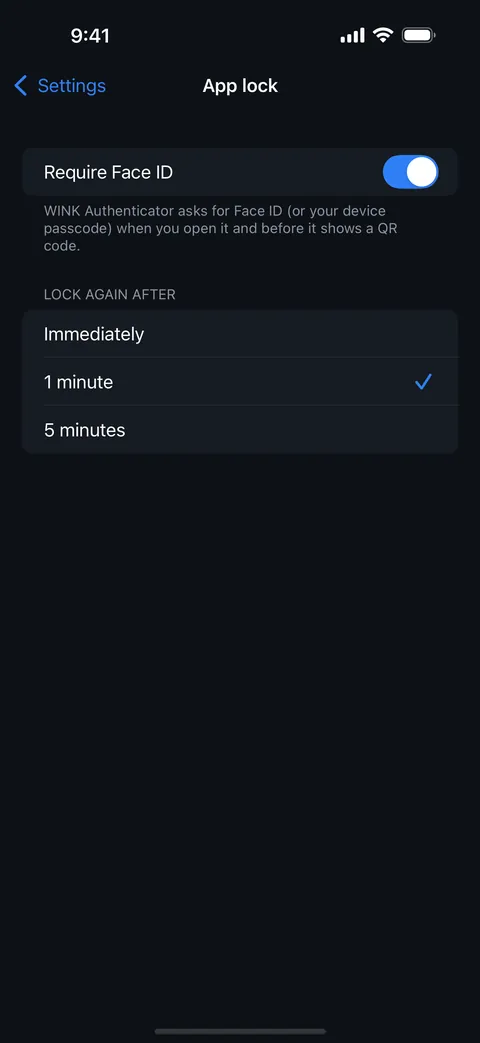
- App lock. On an iPhone or iPad, Settings, then App lock, then turn on Require Face ID, and under Lock again after choose Immediately, 1 minute or 5 minutes. On Android, turn on the App lock switch in Settings, which uses your fingerprint, face or screen lock, then set Lock to Immediately, After 1 minute or After 5 minutes.
- One code at a time. A code is only computed when you tap Generate, and only one is ever on screen.
- Hidden in the app switcher, and on Android a Block screenshots setting, on by default, stops screenshots and screen recordings of your codes.
- Clipboard. A copied code is removed after about a minute.
- Storage. Keys are kept in the iPhone Keychain or in Android's encrypted storage, on that device only.
- Network. Producing a code needs no network at all. The only thing the app ever sends is an anonymous crash report if it crashes, and those never contain account names, keys or codes. Our privacy policy section 7 sets out exactly what one does contain.
- No advertising, no tracking and no account.
10. Devices
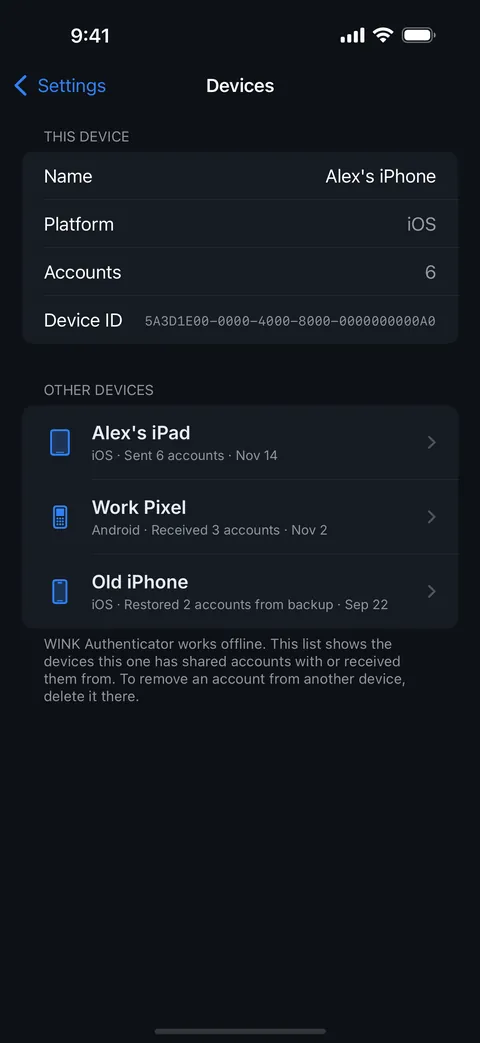
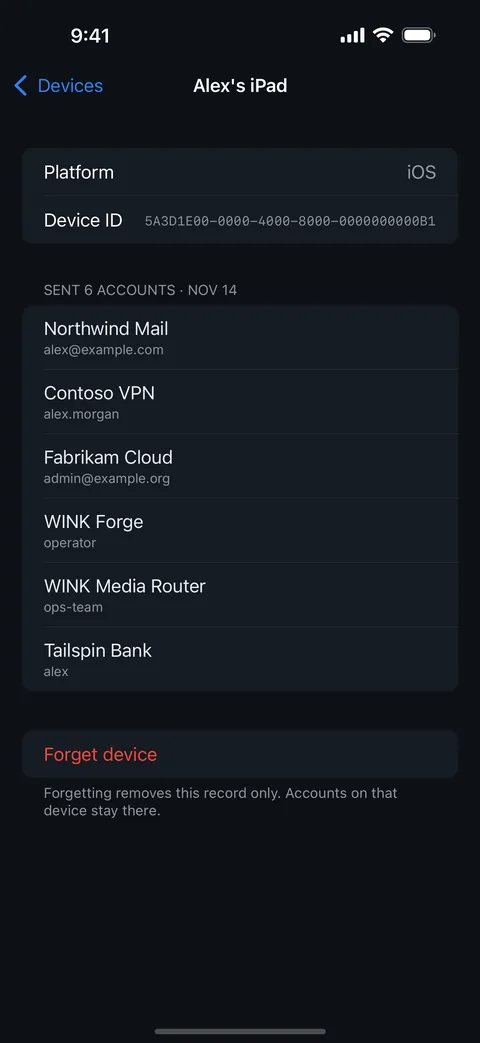
Settings, then Devices, lists this device, which you can rename, and every device it has sent accounts to or received them from, with the dates and which accounts went where.
It is worth being clear about what this is. It is a record kept on your device for your benefit, not a management console. To remove an account from another device, you remove it on that device. Nothing here reaches out and changes anything anywhere else, because there is no service in the middle that could.
11. Signing in to WINK apps Coming, not yet available
WINK applications such as WINK Crossroad will be able to ask WINK Authenticator for a code when you sign in. You confirm with Face ID or your fingerprint and the code is filled in for you, rather than being typed across. Only WINK's own applications will be able to ask.
This is not available today. It is described here so that you know it is coming and do not go looking for it.
12. WINK appliance features Coming, not yet available
Three things are planned alongside updates to WINK Forge and WINK Media Router:
- One tap approval of a sign-in by scanning a QR code shown on the login screen, answered with an eight digit response, instead of typing a six digit code.
- One enrollment per phone, so that an administrator can see which devices are enrolled against an account and remove a lost one.
- A warning when an appliance's clock has drifted far enough to start rejecting codes, which is the cause of most two step verification support calls.
None of these is available yet. Until they ship, WINK systems are used the ordinary way: scan the QR code the system shows, and type the six digit code when you sign in.
13. Troubleshooting
| Problem | What to do |
|---|---|
| The site says the code is wrong | Check that the phone's date and time are set automatically, since a code is computed from the clock. Make sure you are using the right account by checking the name. Then wait for a fresh code and try again. |
| A WINK system rejects every code | The appliance's own clock may be wrong. Ask whoever administers it to check the time on it. |
| The QR code will not scan | Tap the camera view to focus, move a little further away, turn the other screen's brightness up, or switch camera. Failing all that, type the setup key instead. |
| A transfer stops before it finishes | Keep both screens steady and bright. The receiving device shows which codes it is still waiting for, and the sending device keeps cycling until they have all been caught, so you do not need to start again. |
| Face ID or fingerprint is not offered | Set it up in the device's own settings first. Your device passcode always works as an alternative. |
An otpauth:// link opens another app on iPhone | Apple's Passwords app handles the same links. Copy the link and use the paste option in WINK Authenticator instead of tapping it. |
| You deleted an account by mistake | Restore it from a backup, or use the website's own recovery codes to get in and set two step verification up again. |
| You lost your phone | See the answer in the questions below. The short version is that we cannot recover it for you, and there are four things you can do. |
14. Questions and answers
Getting started
What is WINK Authenticator?
A free app that adds a second step to signing in. Once you have connected an account, it gives you a new six digit code every thirty seconds to type after your password.
Is it free, and do I need an account?
It is free, with no advertising, no in-app purchases and no sign-up. There is no account with us and nothing identifies you to us.
Which sites does it work with?
Any site or system that offers codes from an authenticator app. It uses the open TOTP and HOTP standards that most services support, and it works with WINK systems as they add authenticator sign-in.
Does it need the internet?
No. Codes are produced on your phone, so it works in airplane mode, on an isolated network and with no signal at all.
Which devices are supported?
iPhone and iPad running iOS 17 or later, and Android phones and tablets running Android 8 or later.
Using it
Why can I not see my codes?
Codes stay hidden until you tap Generate on the account you need, so that nobody can read them over your shoulder. Tap Stop when you are done.
How long does a code stay on screen?
Until you tap Stop, until you leave the app, or after two minutes of not being used. You can change that to one or five minutes in Settings.
The website says my code is wrong. What now?
Make sure your phone sets its date and time automatically, check that you are using the right account, and try a fresh code. If it is a WINK system, its own clock may be the problem, so ask the administrator to check it.
Can I organise my accounts?
Yes. Put each one in Work or Personal, search, rename them, give them colours and drag them into the order you want.
What are recovery codes, and why keep them here?
When you turn on two step verification, many sites give you a set of one time backup codes for when you cannot use your phone. Keeping them in the account's recovery codes, behind Face ID or your fingerprint, means they are with you when you need them instead of in a drawer.
Phones, backups and recovery
I am getting a new phone. How do I move my accounts?
Use the phone to phone transfer in section 6. Receive on the new phone, send from the old one, and check that both show the same number. It works between iPhone, iPad and Android.
Can I use it on two devices at once?
Yes. Transfer to the second device and choose Keep on the first. Both will then produce the same codes.
Are my accounts backed up to iCloud or Google?
No, deliberately, because the keys never leave your device's secure storage. Make a password protected backup file in Settings instead, and keep it somewhere safe.
I lost my phone. Can WINK recover my accounts?
No. We never hold a copy of your keys, so there is nothing for us to give back and nobody can recover them for you. What you can do is one of these four things, and the first three only work if you set them up beforehand:
- Restore your WINK backup file onto a new device.
- Use another device you had already transferred your accounts to.
- Use the recovery codes each website gave you, then set two step verification up again.
- Contact each website's support and prove who you are to them.
Doing one of the first three today is the whole of the insurance. It takes a few minutes and it is the difference between an inconvenience and a very bad week.
I forgot my backup password.
It cannot be reset, because the file is encrypted with it and we do not hold it. If your phone still works, make a new backup with a new password now.
Can I move accounts from another authenticator app?
From Google Authenticator, yes, by scanning the export QR codes it produces. Microsoft Authenticator cannot export, so the app guides you through setting each account up again. Section 8 covers both.
Can I go back to another authenticator app later?
Yes. Settings, then Transfer, then the option to send to another authenticator app, produces QR codes most of them can scan.
Security and privacy
Is it safe?
Your keys are kept in the iPhone Keychain or Android's encrypted storage, on your device only. You can lock the app with Face ID, Touch ID or a fingerprint, codes stay hidden until you ask for one, screenshots of codes are blocked on Android, and a copied code clears from the clipboard after about a minute. Transfers and backups are both encrypted.
Does WINK see my accounts or my codes?
No. Producing a code needs no network. The only thing the app ever sends is an anonymous crash report if it crashes, and a filter discards the whole report if it contains anything shaped like an account key, so names, keys, codes and recovery codes cannot reach us even in a fault. Our privacy policy section 7 is the full statement.
Why does the app need the camera?
Only to scan QR codes, when you add an account or receive a transfer. Nothing is recorded and nothing is sent.
Does it support push notifications asking you to approve a sign-in, or passkeys?
Not for other companies' services, because those are tied to their own applications by design. For WINK systems, approval by QR code is coming with appliance updates and is described in section 12.
For WINK customers and administrators
Can we require it for WINK Forge or WINK Media Router sign-ins?
Any WINK system or service that offers standard authenticator app codes works with it today. The planned WINK Forge and WINK Media Router updates add authenticator sign-in with per phone enrollment that administrators can revoke, approval by QR code, and clock drift warnings. Those are not available yet, and we can give you timing if you ask.
Who do we contact for help?
Write to service@wink.co.
The product page is WINK Authenticator. The other free WINK applications are listed on WINK Mobile Apps, and the rest of our documentation is in Documentation.
Screenshots in this manual use sample accounts, which are not real ones. If something in the app does not match what is written here, write to service@wink.co and we will correct it.