1. What WINK Monitor watches
WINK Streaming sets up the monitoring for your account. It normally covers:
- Your WINK systems: WINK Media Routers, WINK Crossroad and the other WINK servers on your account.
- Your cameras: every camera on your WINK Media Router sites, checked continuously. See section 6.
- Up to twelve courtesy checks for anything else that matters to you, such as a company website, a VPN gateway or a mail server.
Each check is one of these types:
| Type | What is tested |
|---|---|
| Website or API over HTTPS | That the page answers with the status you expect, how quickly it responds, and how long until its security certificate expires |
| Ping | That the device answers, and how quickly |
| TCP port | That a service is accepting connections, for example mail, VPN or a database port |
| DNS | That a name server answers for your domain |
| Camera site | Every camera on a WINK Media Router: streaming, picture up to date, and a real picture rather than a blank or "No Video" screen |
Checks cannot be added or changed inside the application. To change what is monitored, use Settings then Request a change (section 10), or contact WINK support.
2. Why the alerts can be trusted
Every check runs at the same time from several monitoring locations on different networks, in the United States and in Latin America. Each location votes, and an outage is only reported when the locations agree.
- If one location has a network problem of its own, it is outvoted and you are not alerted.
- If your system really is down, every location sees it and you are alerted within minutes.
- The monitoring service runs on several servers that each hold a full copy of the data. If one cannot be reached, the application moves to another by itself.
History is kept for eighteen months.
3. Getting started
- Get an account. WINK Streaming creates logins for your team and there is no sign-up in the application. Ask your WINK account manager, or write to support@wink.co.
- Install the application from the App Store on iPhone and iPad, or Google Play on Android.
- Sign in. The server address is already filled in for you (
mon.wink.co). Enter the email address and password WINK Streaming gave you, and an authenticator code if two step sign-in is turned on for your account. - Allow notifications when asked, so that alerts can reach you.
To look around without an account, tap Try sample data on the sign-in screen.
4. Status
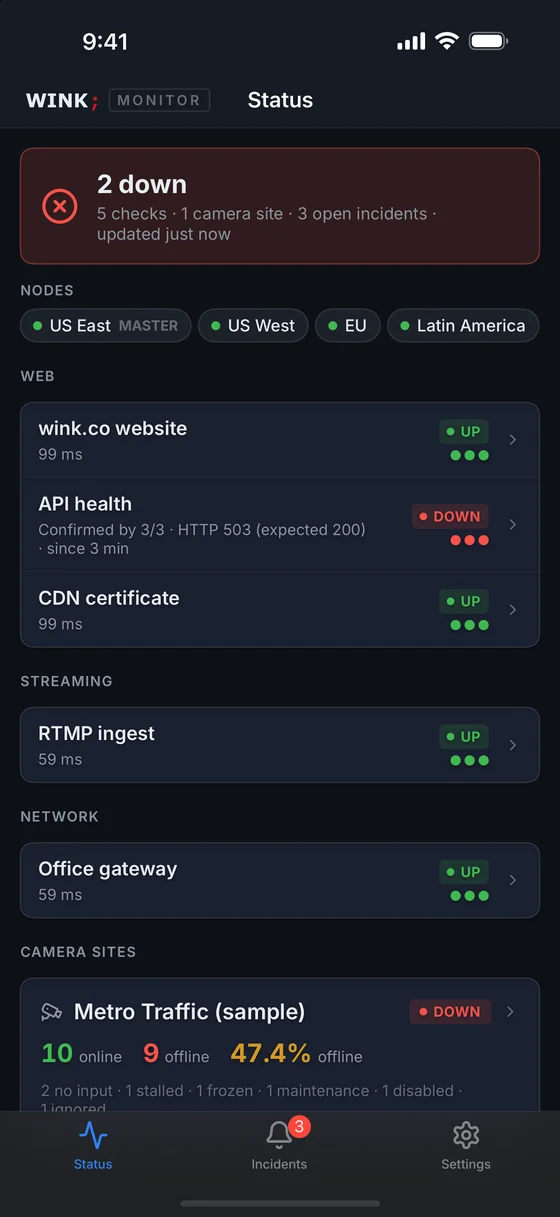
The Status tab shows everything being monitored for you.
- The banner at the top sums it up, either "All systems up" or how many things are down.
- Monitoring locations are listed under the banner. A location marked "for review" currently disagrees with the others, and its votes are being ignored.
- Checks are grouped, for example into Web and Network, and each shows its state and response time.
- Camera sites show how many cameras are online, offline, or have no input.
| State | Meaning |
|---|---|
| Up | Working normally |
| Degraded | Working but slow, or a certificate expiring soon |
| Down | Confirmed down by the monitoring locations |
| Maintenance | A planned maintenance window, with no alerts |
Pull down to refresh. The screen also updates by itself.
5. Check details
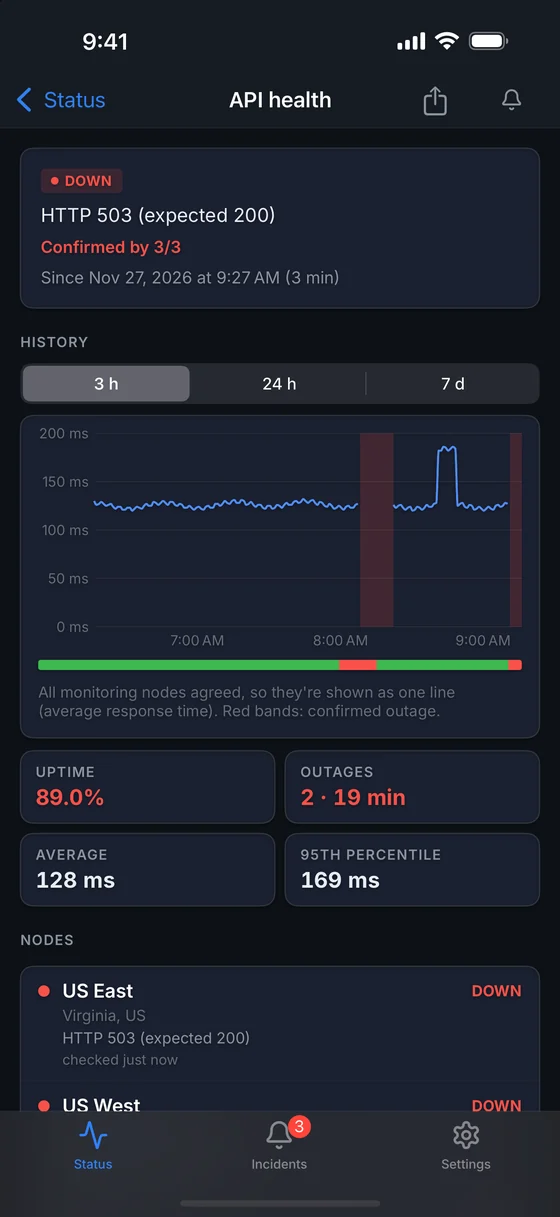
Tap any check to see:
- The result from each monitoring location, with its response time and message.
- A history chart of response time over three hours, twenty four hours or seven days, with a coloured strip for each location: green for up, amber for degraded, red for down. Red bands mark confirmed outages.
- Uptime, the number of outages, and average and 95th percentile response times for the period shown.
- Traceroute, the network path from each location to the target. This is what to send a provider when you need to show them where the traffic stops.
- Share graph, which sends the chart as an image, for example into a ticket or a chat.
6. Cameras
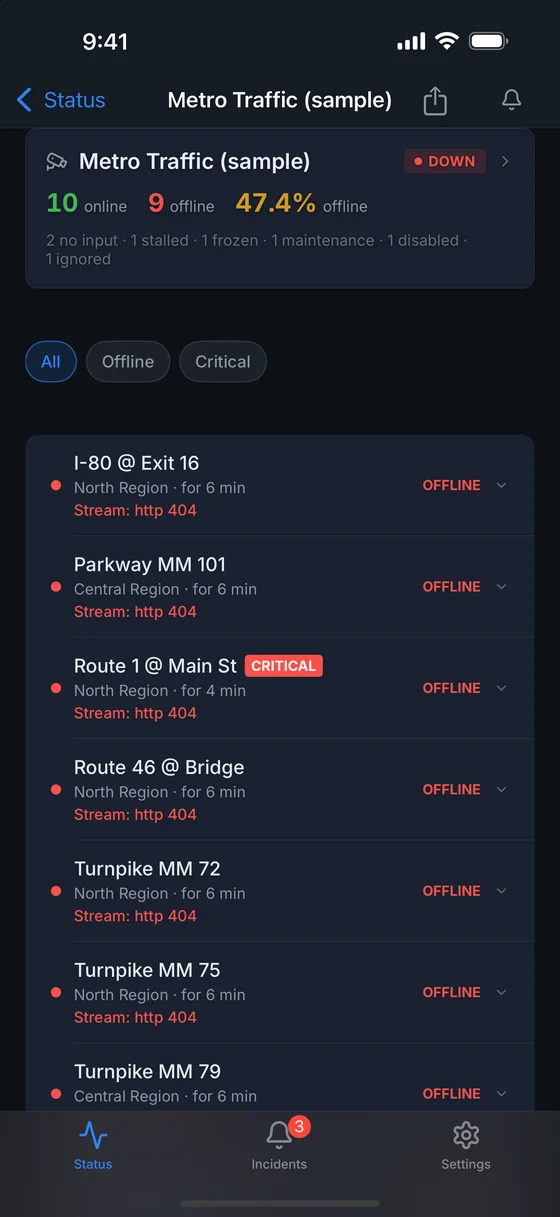
For each WINK Media Router site, WINK Monitor checks every camera every few minutes for three separate things:
- that the video stream is running and new video keeps arriving;
- that the picture the router holds for the camera is up to date;
- that the picture is real video, rather than colour bars, a blank blue, black or white "No Video" screen, or a frame that has not changed.
| State | Meaning | Counts as offline |
|---|---|---|
| Online | Streaming with a real picture | n/a |
| Offline | No stream | Yes |
| Stalled | The stream or the picture stopped updating | Yes |
| Frozen | The picture has not changed for a long time | Yes |
| No input | The stream is up but the picture is a blank or "No Video" screen, usually a camera disconnected from its encoder | No, shown separately |
| Maintenance | Taken out of service on purpose | No |
A site is reported down when the share of offline cameras passes the limit set for that site. Each camera keeps its own history, so you can see when it went offline and for how long.
7. Incidents
The Incidents tab lists every outage: open ones first, then closed ones with how long they lasted.
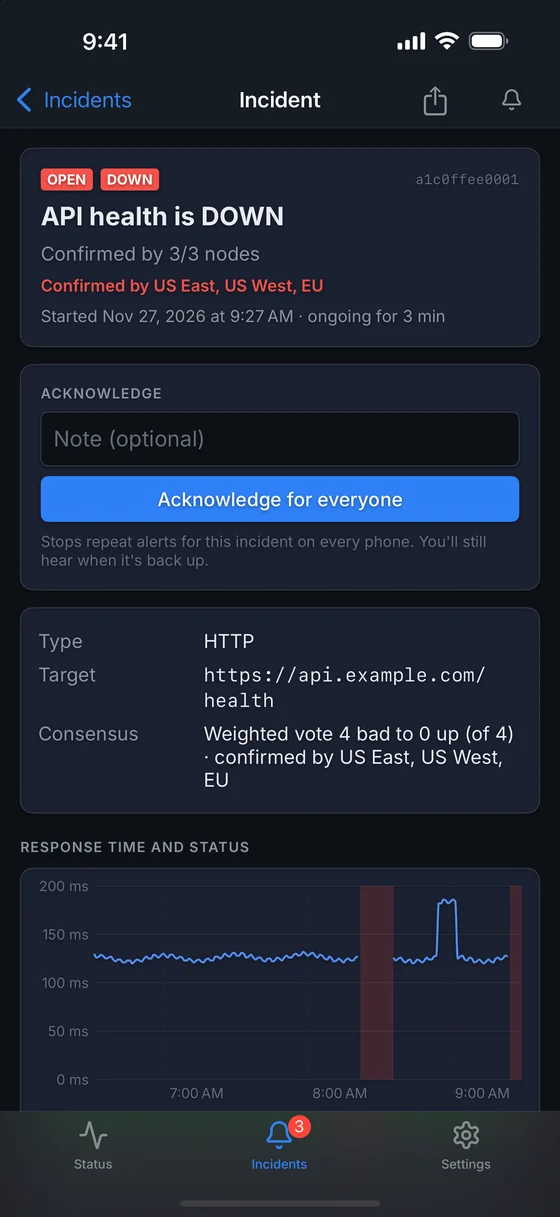
Open an incident to see what failed, when it started and which locations confirmed it, the response time chart around the outage, and a timeline running from first failure through confirmed and acknowledged to recovered.
- Acknowledge an incident to tell everyone it is being handled. It stops the repeat alerts for that incident on every phone, and you are still told when it recovers.
- Mute a check for a while, for example during planned work, to stop its alerts on your phone.
8. Alerts on your phone
When something goes down, the monitoring service sends a push notification with a distinct WINK alarm sound. A second notification follows when it recovers.
- iPhone and iPad: alerts are marked Time Sensitive, so they come through Focus modes.
- Android: alerts use their own notification channel with the alarm sound.
In Settings you can choose between every outage alert and only the checks you pick, turn alert sounds on or off, set quiet hours with the option to let outage alarms still sound, play a test alert to hear the alarm, and send a test push to confirm notifications are reaching the phone.
Alerts come from the monitoring service rather than from the application, so they arrive even when the application is closed. As a backup, the application also checks in by itself from time to time: roughly every fifteen minutes on Android, and as often as iOS allows on iPhone and iPad.
9. Alert emails
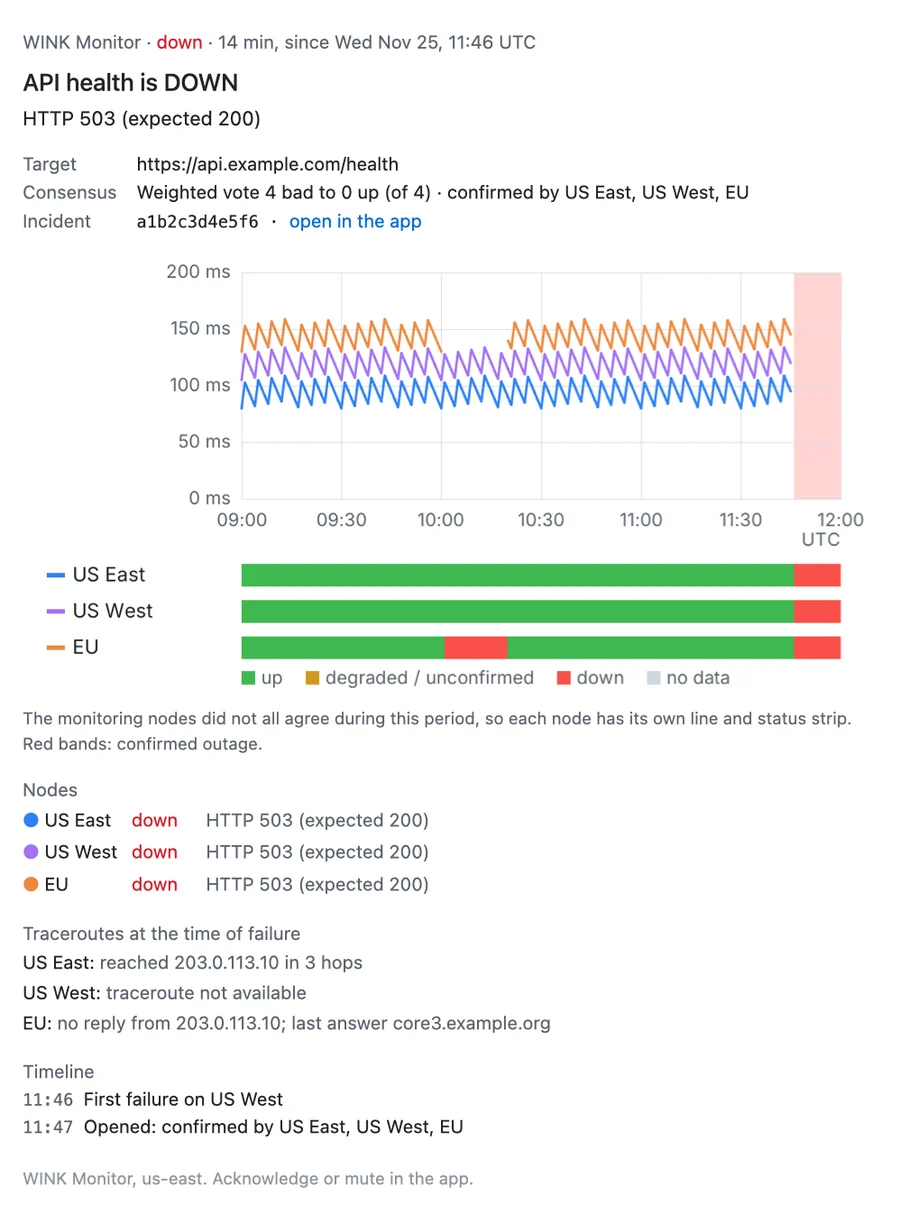
Every outage and recovery can also be sent by email. The emails are deliberately short and clear: what is down, since when, which locations confirmed it, a response time chart, the result and traceroute from each location, and a timeline. A link opens the incident straight in the application.
Alert emails can go wherever your team works:
- Your ticketing system, so that each outage opens a ticket automatically.
- A Microsoft Teams channel, using the channel email address.
- People's own email addresses.
WINK support sets the addresses for your account. You only need to tell us where you want them.
10. Requesting a change
To add, change or remove something that is monitored, open Settings then Request a change, choose what you want, add a note and send it. The request goes to WINK support, who reply by email.
Settings then What we monitor lists every check and camera site on your account, so you can always see exactly what is covered.
11. Troubleshooting
| Problem | What to do |
|---|---|
| No alerts arrive | In Settings, check that notifications are allowed, then tap Send test push. On iPhone and iPad, check your Focus settings as well. |
| "Cannot reach the server" | Check the phone's internet connection. The application tries each monitoring server automatically. |
| Wrong email address or password | Contact WINK support to reset it. There is no password reset in the application. |
| Something is shown down but works for you | Open the check. If only one location is failing, it has been outvoted and no alert was sent. If every location fails, the problem is real from the internet's point of view even though it works on your local network. |
12. Privacy and support
The application carries no advertising and no tracking or profiling software, and your login stays on the device. Crash and diagnostic reports are sent when the application crashes, freezes or hits an error; what they contain is set out in section 1.7 of our privacy policy.
- Email: support@wink.co
- Change requests: in the application, under Settings then Request a change
- Product page: WINK Monitor